Written and tested by the MD Converter editorial team
Markdown Document Converter Page Breaks: Drag, Click, and Auto-Insert
Control page breaks in Markdown Document Converter: drag or toggle breaks in Preview, use Precise mode, combine layout rules, and fix pagination issues.
What you'll learn
- How to drag page-break handles in Preview to move breaks to a new position
- When to use click (add/remove) vs drag (reposition)
- How to combine Layout rules, Precise page breaks, and manual drags
- Common page-break problems and exactly how to fix them
- Why controlling breaks in Preview—not in the Markdown source—is better
Aimed at anyone who needs clean PDF pagination for specs, reports, proposals, or academic documents.
Why manually adjust page breaks?
Markdown is a flowing text format with no native page concept. After HTML conversion, CSS print properties (page-break-after, break-before, break-inside) decide where pages break. Auto-pagination often produces:
- Headings stranded at the bottom of a page
- Tables split across two pages
- Code blocks cut mid-section
- Figure captions separated from their images
You can embed <div style="page-break-after: always;"> in .md, but that hurts readability and forces edits whenever layout changes. Markdown Document Converter keeps all break logic out of the Markdown file—adjustable purely from the Preview UI.
5 ways to control page breaks in Markdown PDF
| Method | Where | Best for | Edits Markdown? |
|---|---|---|---|
| Drag in Preview | Preview panel | Moving an existing break slightly | No |
| Click a block | Preview panel | Adding or removing a break | No |
| Layout rules | Layout settings panel | Applying document-wide CSS print rules | No |
| Precise page breaks (auto) | Toolbar button | Long documents, bulk auto-pagination | No |
| Inline HTML | Markdown source | CI/CD pipelines, tool-free workflows | Yes |
The first four methods can be combined freely without touching the Markdown source.
Drag page-break lines in Preview
Step-by-step
- Open Markdown to PDF and load your .md file.
- Switch to the Preview tab.
- Find the dashed page-break line at a page boundary.
- Click and drag the handle (grip icon) at the center of the line.
- Drop it on the block boundary where you want the new break.
While dragging, block boundaries highlight so you can see exactly where the break will land.
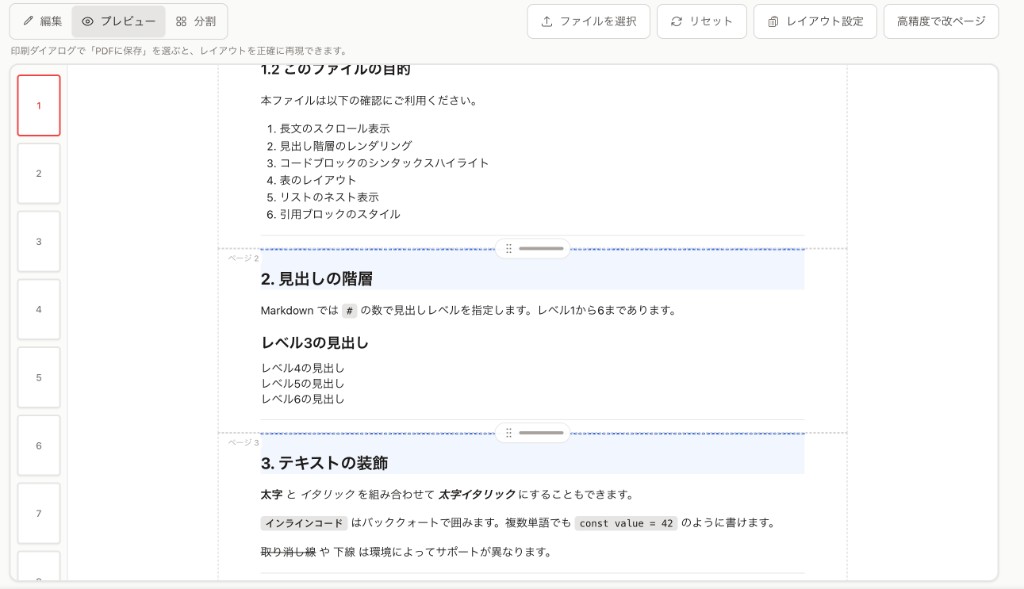
Figure: Page boundaries appear as dashed lines in Preview. Drag the center handle to reposition.
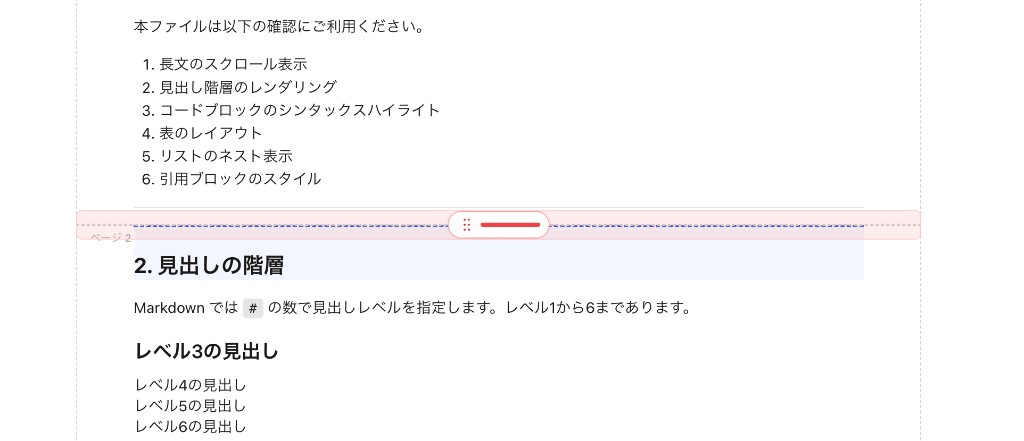
Figure: Drag the handle up or down to move the break between block boundaries.
How drag works
- Block-level only: breaks snap to block boundaries (headings, paragraphs, tables, code blocks). You cannot place a break in the middle of a paragraph.
- Layout rules take priority: if Layout settings force a break before h2, that position is locked and the drag range adjusts accordingly.
- Large moves: for big repositions, delete the break (click) and re-add it at the new location—often faster than dragging across many blocks.
Click vs drag — when to use each
| Action | Effect | Best for |
|---|---|---|
| Click a block | Toggle a page break on / off before that block | Adding a new break or removing one |
| Drag the line | Move an existing break to a new boundary | Repositioning, fine-tuning |
Typical workflow: click to add the break, then drag to the exact spot you need.
Combining with Layout rules
Under Layout Settings → Advanced → Page breaks, set document-wide rules:
| Rule | Effect | Use case |
|---|---|---|
| Break before h1 | Every major heading starts on a new page | Reports with separate chapters |
| Break before h2 | Every section heading starts on a new page | Spec and design documents |
| Avoid break inside table | Tables stay on one page | Data-heavy comparison tables |
| Avoid break inside code block | Code blocks stay on one page | API references, technical docs |
These rules apply as CSS break-before and break-inside properties on the rendered output. Set the document-wide foundation with rules first, then fine-tune individual positions with drag.
Recommended workflow:
- Set document-wide rules in Layout first (e.g. break before h2)
- Use Precise page breaks for auto-insertion based on measured block heights
- Fine-tune individual positions with drag
Working "rules → auto → drag" makes large documents much faster to paginate.
Precise page breaks + drag
The Precise page breaks button measures the actual rendered height of every block and inserts breaks just before a page would overflow. It creates a solid baseline quickly; then drag to:
- Move a heading to a more natural break point
- Keep a figure and its caption together on one page
- Avoid an awkward single line at the top of a new page
For documents of 10+ pages, "auto then fine-tune" is almost always faster than placing every break manually.
Common page-break problems and fixes
Heading stranded at the bottom of a page
Symptom: An ## 2. Overview heading sits alone at the bottom of a page while the content starts on the next.
Fix: Enable Break before h2 in Layout settings, or click the heading block to add a manual break before it.
Table split across pages
Symptom: A table header and its rows are on separate pages, or a table breaks in the middle.
Fix:
- For tables that fit on one page: enable Avoid break inside table in Layout settings.
- For long tables that can't fit on one page: add a manual break before the table so it starts at the top of a fresh page.
Code block cut in half
Symptom: Code is split by a page boundary, making it hard to read.
Fix: Enable Avoid break inside code block in Layout settings. For very long code blocks that can't fit on one page, add a manual break at a logical point in the code.
Break won't move when dragging
Symptom: Dragging does nothing, or the break snaps back to its original position.
Fix: Check Layout settings for rules that pin breaks (e.g. "break before h1"). Disable the rule temporarily, adjust with drag, or delete and re-add the break at the new position.
PDF looks different from Preview
Symptom: Preview looks clean but the exported PDF has different break positions.
Fix:
- In the print dialog, set margin preset to "Default"
- Set scale to 100%
- Match paper size (A4/Letter) to what Preview shows
- Use Google Chrome for the most reliable PDF output
See Why Markdown PDFs and Print Look Broken for details.
Recommended settings by document type
| Document type | Layout settings | Notes |
|---|---|---|
| Engineering specs | Break before h2 + avoid break in table | Sections start on new pages; tables stay intact |
| Business proposals | Break before h1 and h2 | Chapters cleanly separated |
| API reference | Avoid break in code block | Code stays readable |
| Meeting minutes / manuals | Avoid break in table | Tables always display intact |
| Academic reports | Break before h1 + manual drag | Fine-tune to match submission format |
Local processing and external requests
Local files and pasted Markdown are converted and previewed in your browser; their source is not uploaded to this site's servers for conversion. External images and web fonts still contact their respective hosts. For confidential documents, remove remote assets and follow your organization's handling policy.
FAQ
Dragging does nothing—the break won't move
Document-wide rules in Layout (e.g. "break before h1") can constrain where breaks land. Check and adjust those rules first, then try dragging again.
Can I write page breaks directly in the Markdown file?
Yes—<div style="page-break-after: always;"></div> works. But this tool recommends keeping breaks outside the source for cleaner Markdown and easier layout iteration.
Are page break positions saved?
Yes—the session preserves your settings through page reloads. After exporting HTML or PDF and reopening the tool, you may need to re-apply them.
The PDF looks different from the Preview
Reset the print dialog margin preset to "Default" and set zoom to 100%. Match paper size (A4/Letter) to what Preview uses. See Why Markdown PDFs and Print Look Broken.
After adding a cover or TOC, my breaks shifted
Cover and TOC pages change the total page count, so break positions can appear to shift. Finish configuring the cover and TOC before finalizing page breaks.
Should I use Layout rules or Precise page breaks first?
Set Layout rules first. When you then run Precise page breaks, auto-insertion respects those rules and produces a more natural result.
Is there automatic page numbering?
Not built in. For page numbers, add them manually in the Markdown source or use a PDF editor (e.g. Adobe Acrobat) after exporting.
Can I use paper sizes other than A4?
Yes—select A4, Letter, Legal, or others in the browser print dialog. Make sure the same paper size is selected in both the Preview layout settings and the print dialog; mismatched sizes will cause break positions to differ.
Related features and articles
- How-to & BlogMarkdown PDF Page Break CSS: Insert Breaks AnywhereInsert Markdown PDF page breaks with break-before, break-after, and break-inside CSS. Includes copy-ready recipes, blank-page fixes, and a final print checklist.Read article
- How-to & BlogWhy Markdown PDFs and Print Look Broken — Causes and FixesFix common Markdown-to-PDF and print issues—margins, breaks, missing backgrounds, font substitution, overflowing tables. Includes a triage checklist and browser comparison notes.Read article
- How-to & BlogMarkdown PDF Margins: @page, Print Dialog, and mm SettingsWhy Markdown PDF margins feel wrong—@page vs body padding, browser print dialog presets, asymmetric binding margins, and mm specs. Fix and verify margins step by step.Read article
- How-to & BlogMarkdown Document Converter User Guide: Features and StepsFull Markdown Document Converter guide covering file loading, view modes, layout controls, HTML download, PDF export, screenshots, and troubleshooting.Read article
- ToolMarkdown to HTML (md to html)Preview .md in the browser, adjust layout, and download HTML.Open tool
- ToolFeaturedMarkdown to PDF (md to pdf)Print and save as PDF from the same view, with page breaks and margins.Open tool